The Schedule Fell Apart Before 8 AM

It's 6:50 AM on a Thursday.
One of your crew leads just texted. His truck won't start.
By 7:15 AM you've moved four jobs in your head, called two customers, and sent a crew across town twice because it was the only way to make the day fit.
By 7:40 AM you'd love to hit "optimize." But you've been burned before.
The last time you trusted the button, it moved your certified gas tech's job to a guy without the ticket. Another time it quietly dropped two stops, and you found out when a customer called asking where everyone was.
So you do it by hand. Again.
The problem isn't speed. It's trust.
Most dispatchers don't avoid route optimization because it's slow.
They avoid it because they can't see what it did.
A typical optimizer hands you a clean-looking result. What it doesn't show you is what it left out, what rules it bent, or whether the schedule changed underneath it while you were reading the preview.
An optimizer you have to double-check isn't saving you time. It's giving you a second job.
So we rebuilt route optimization in CrewOS around one idea: it has to show its work.
Fleet assign: your whole day, reshuffled
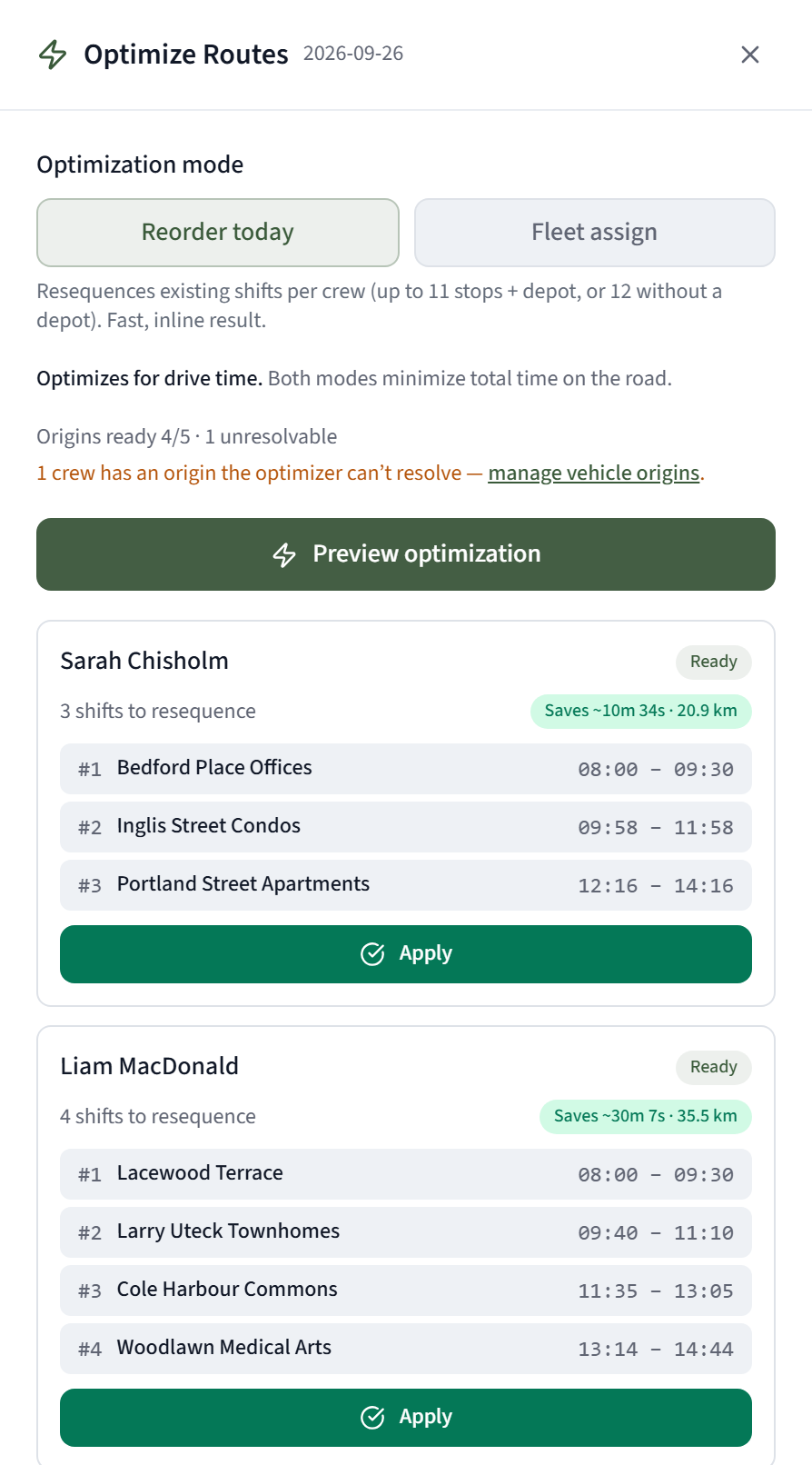
Hit Optimize Routes on the Daily view and you get two modes.
Reorder today re-sequences each crew's stops so they stop zig-zagging.
Fleet assign is the big one. It looks at every booked job across every crew and reassigns them to cut your total drive time for the day. Not one truck at a time. The whole fleet.
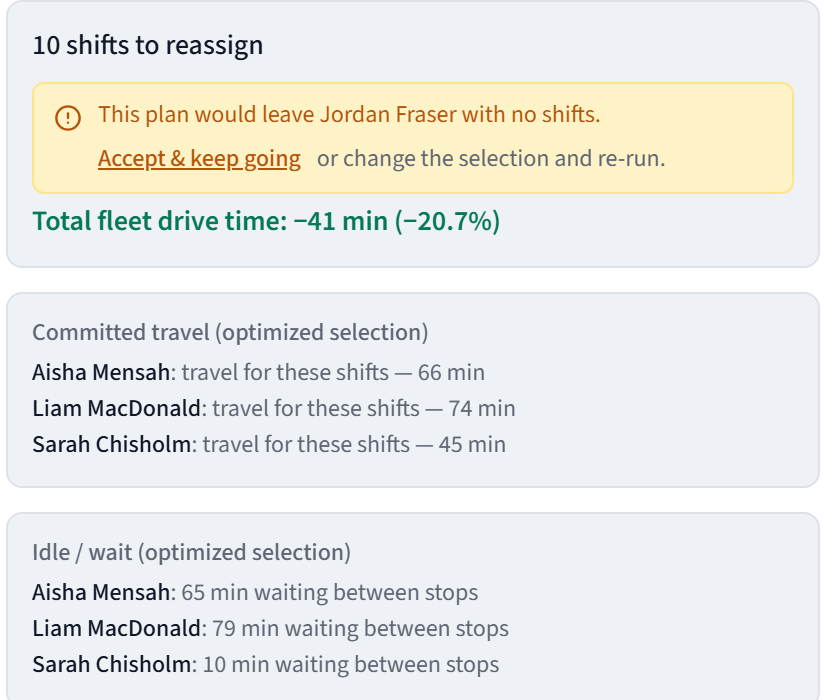
You pick the date, the crews and the jobs. CrewOS works out the best arrangement and shows you exactly what would change: which job moves from which crew to which crew, and how many minutes of driving it saves.
Then you decide.
Nothing moves until you say so
Every optimization starts as a preview. Nothing touches your schedule until you hit Apply.
And if anything changed between the preview and the apply, CrewOS won't apply it. Say the office moved one of those jobs to Friday while you were reviewing. You'll get a clear message that the preview is stale, and one click to re-run it.
No half-applied reshuffles. It's all of it, or none of it.
It never breaks your rules to save a few minutes
Every reassignment is checked against the things that actually matter on your crews:
- Does this person have the certification the job needs?
- Are they on approved time off?
- Are their compliance documents current?
- Do they have the capacity?
- Would this double-book them?
If a single move fails any of those checks, none of the moves are applied, and you're told which job, which crew and which rule.
Your gas tech keeps the gas jobs. Every time.
It tells you what it couldn't do
This is the part most tools skip.
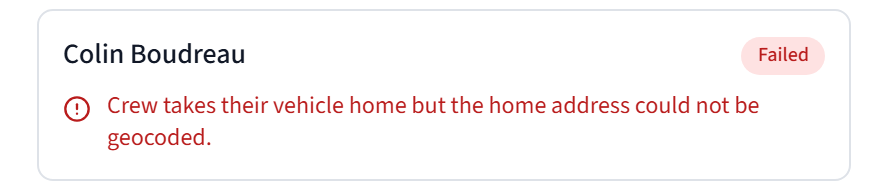
Every result includes a section called Excluded from this optimization. If a crew was left out, it's listed there with the reason, like a crew whose starting point can't be found on the map. Nothing disappears quietly. You see it.
CrewOS will never call your day "already optimal" when work fell off the plan.
Pins, and no crew left behind
Some customers want the same crew every time. Mrs. Patel wants Dave.
Pin the job, and the optimizer treats it as a hard rule. It isn't a suggestion the solver can overrule. Any plan that breaks a pin gets thrown out.
And if you're worried the "best" plan will send a crew home with nothing to do, turn on Keep everyone working. If a plan would leave a crew idle, CrewOS names that crew and won't apply until someone makes that call on purpose.
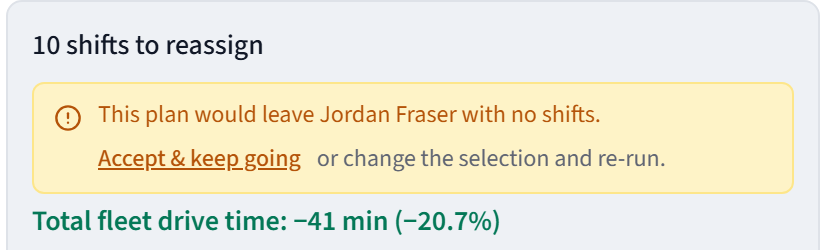
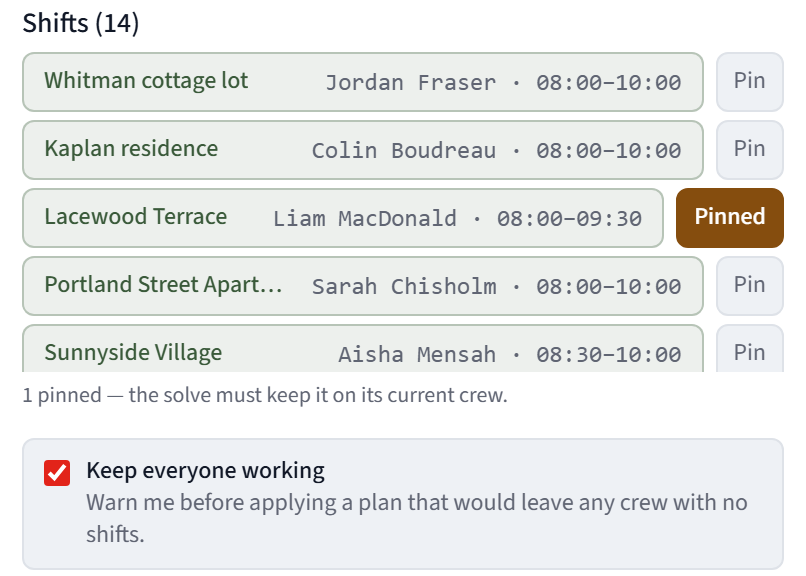
The software doesn't decide who gets a short day. You do.
Routes that start where the truck actually sleeps
Most routing assumes every truck leaves from the shop.
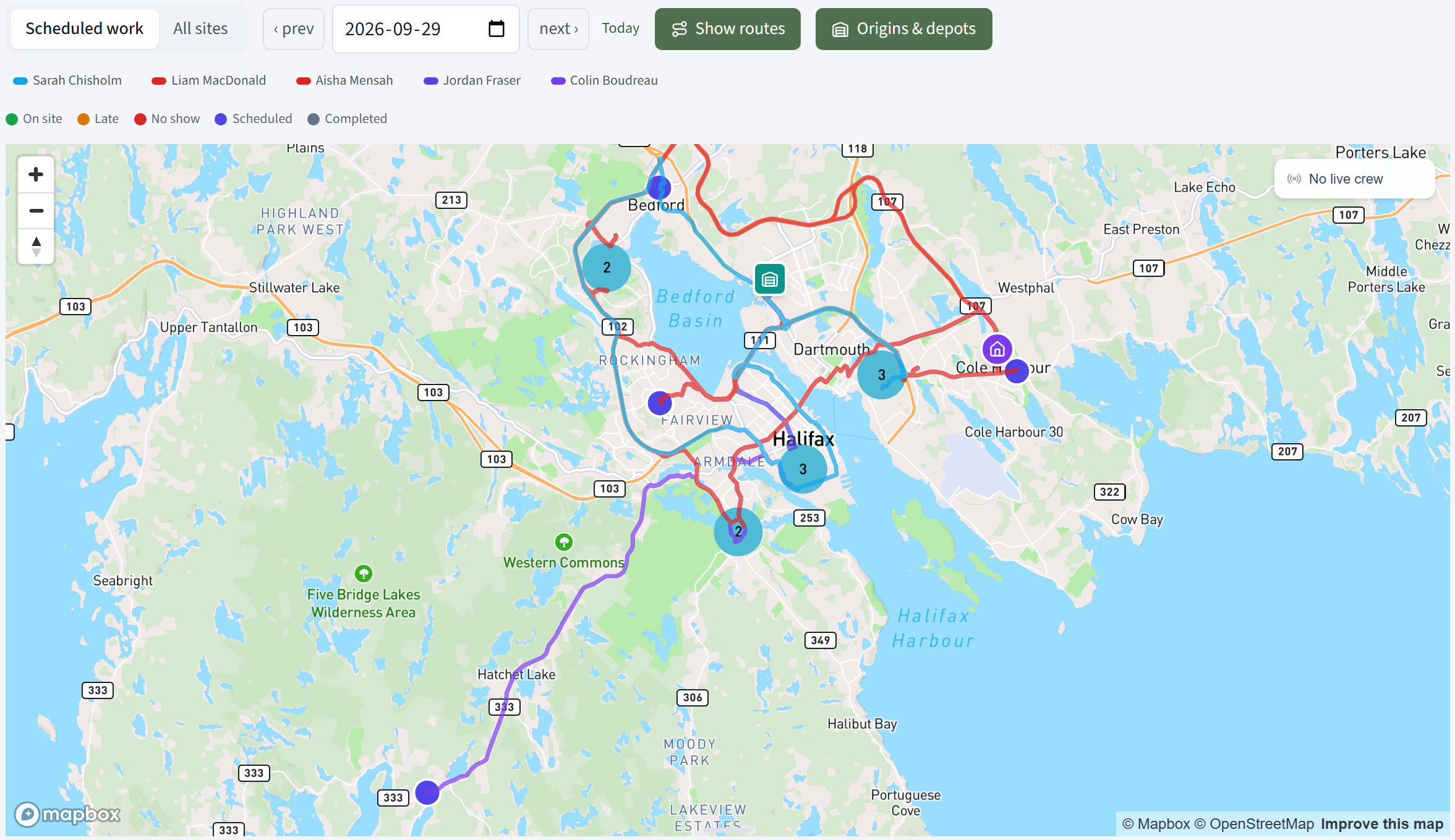
Yours don't. Some crews take the truck home. Some start from the north yard.
In Vehicle Origins you set it up once: your yards, your default depot, and which crew members take their vehicle home. Every route starts from the right place, and you can see it on the map with real road routes drawn out for each crew.
Crew home addresses stay private. Only owners see where a truck parks overnight.
Recurring work that fits your trade
Scheduling isn't only about today. It's about the work that comes back.
The new recurring scheduler handles the patterns trades actually run on:
| The work | How you set it up in CrewOS |
|---|---|
| Filter changes every 3 months, inspections every 6 | Every N weeks or months |
| "The 2nd Tuesday of the month," not "the 14th" | Weekday position |
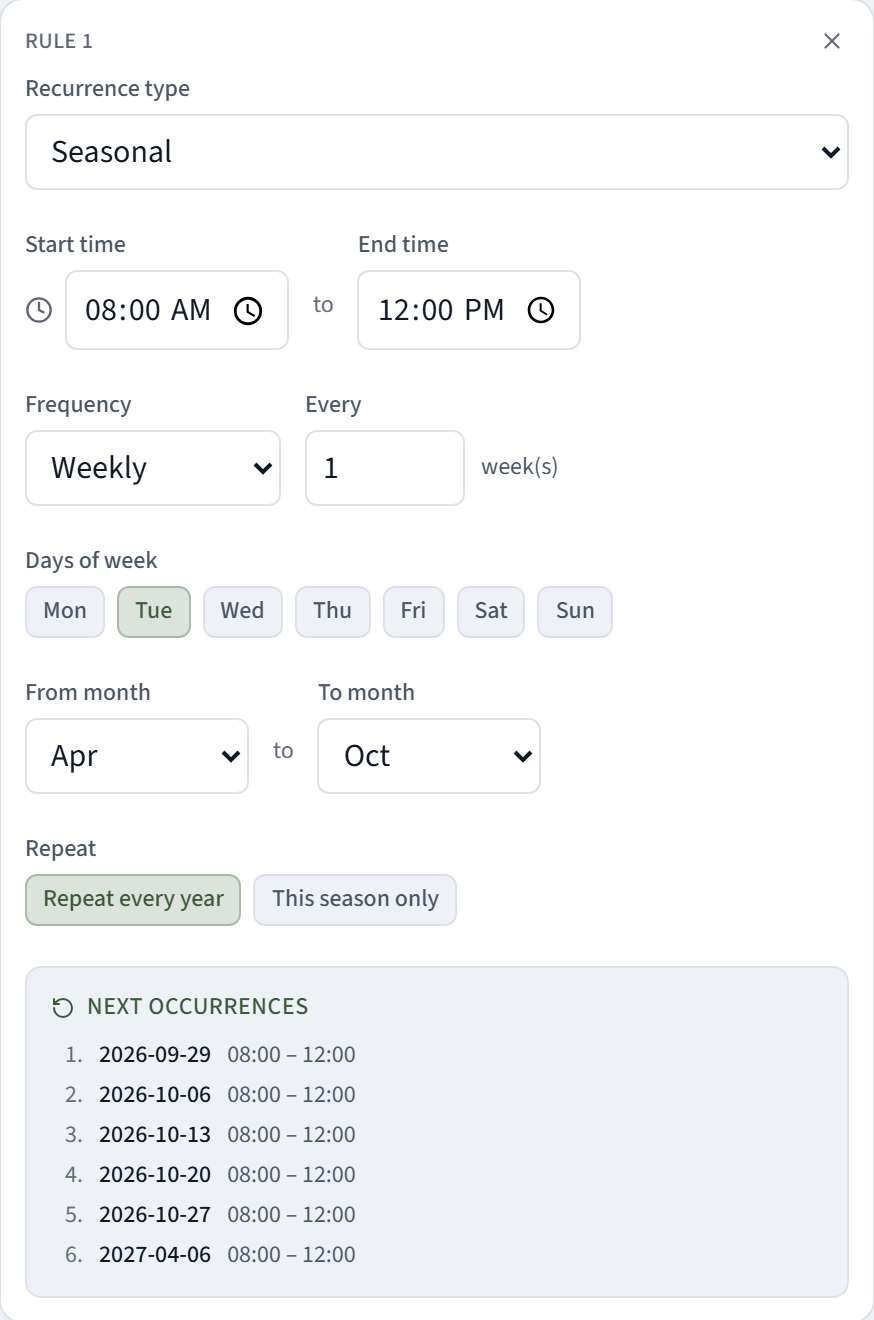
| Lawn care April to October, snow November to March | Seasonal, straight across New Year, repeating every year |
| Five aeration dates, each with the aeration crew | Specific dates, with a different crew on each |
And when you move or cancel one visit, that change sticks. The series won't quietly re-create the visit you moved last week.
What changes at 7:40 AM
The truck still won't start. That part's on you.
But the rest of the morning looks different:
- You hit Optimize Routes and pick Fleet assign.
- The preview tells you what moves, what it saves, and what it couldn't place.
- Your pins held. Your certified people are on the jobs that need them. Nobody's sitting at home.
- You hit Apply reassignment, and you go deal with the truck.
That's what an optimizer is supposed to do. Give you the morning back, without giving you something new to worry about.
Next in the series: it's noon, and your office manager is doing forty things at once. One Paragraph. Five Jobs Done. Nothing Sent Without You.